
How to back up your phone photos to your own drive
Photos Copy works in three steps: connect a drive, choose your folders, and let it copy. This page walks through each step in plain terms.
What do I need before I start?
Two things: an Android phone, and somewhere to back up to. Any of these works:
- A NAS or home server on your home network — Synology, QNAP, a home-built server, or a shared folder on a computer — as long as it offers network shares (SMB).
- A WebDAV server or WebDAV storage service — many NAS boxes can turn WebDAV on, and some storage services offer it directly.
- A USB drive you plug into your phone, or a folder on the phone itself.
How do I connect my NAS or network share (SMB)?
Make sure your phone and the NAS are on the same home network, and that file sharing is turned on on the NAS. Then open Photos Copy, add a drive, pick your share from the list, and sign in with the same username and password you use for that share. Your sign-in is stored encrypted on your phone only — it isn’t sent anywhere else.
How do I connect a WebDAV drive?
Add a drive in the app, enter the WebDAV server address, and sign in with that service’s username and password. If your NAS offers WebDAV, you can use its address the same way.
How do I back up to a USB drive?
Plug the USB drive into your phone, add it in the app, and allow access when Android asks. USB backups run while the drive is plugged in.
How do I choose which photos get backed up?
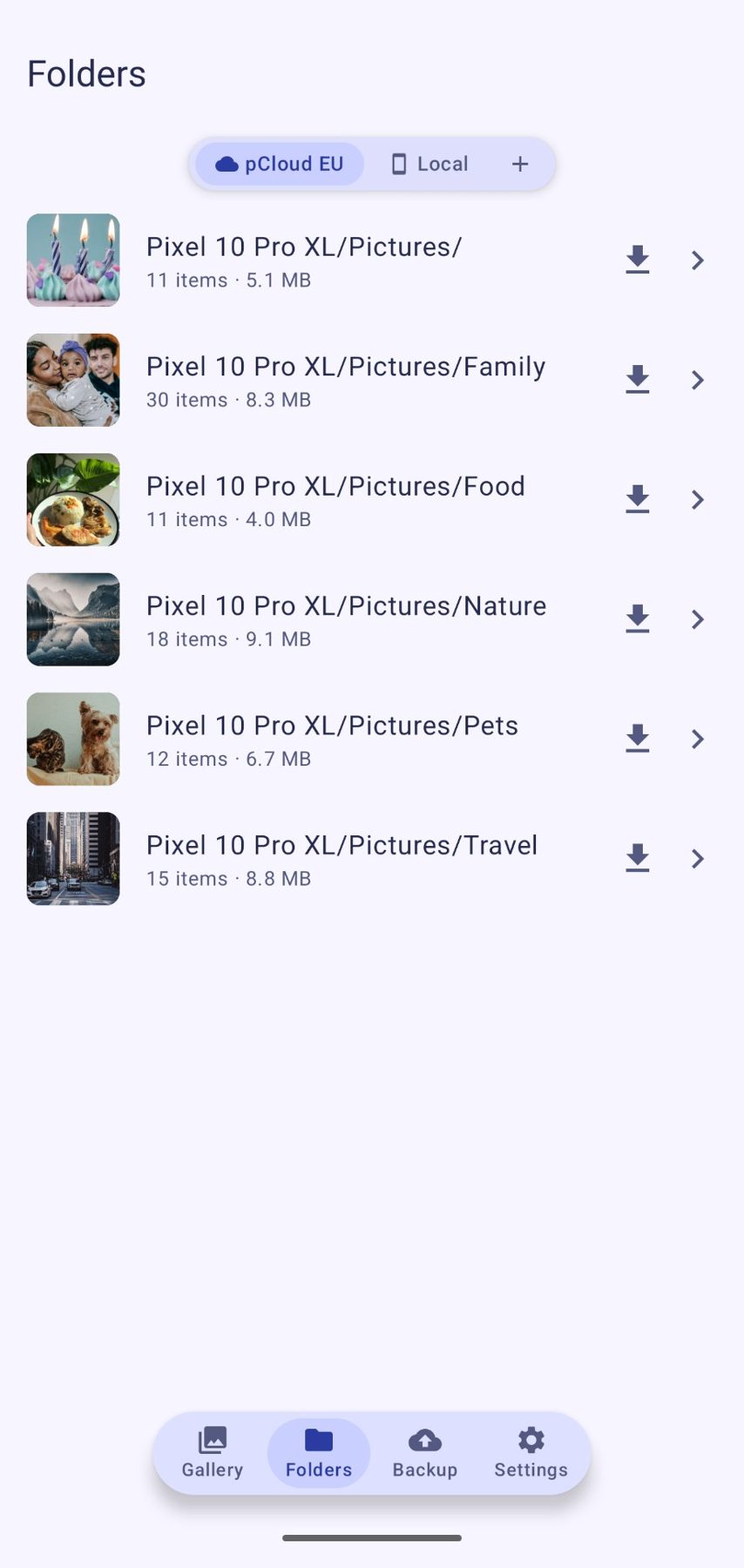
You pick the folders — your camera folder, screenshots, downloads, whichever you want kept. Photos Copy copies the photos and videos in the folders you chose. You can give different drives different folders if you like.
What exactly gets copied?
Your photos and videos, copied as they are, into a PhotosCopy folder on your drive. Nothing is renamed, shrunk, or converted, and that’s all it does — nothing moves, nothing vanishes.
What if a photo is already backed up?
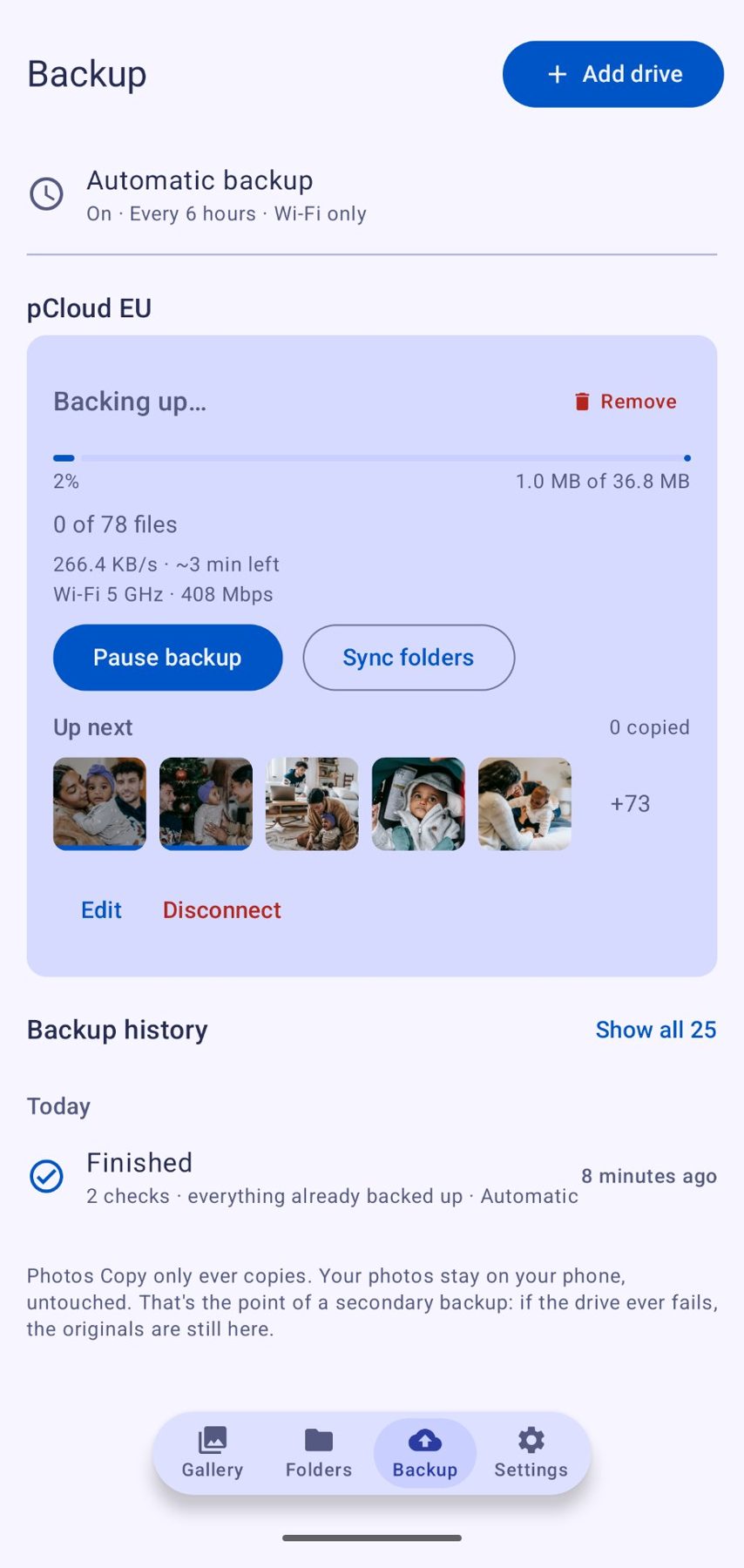
It’s recognized and skipped. Re-running a backup doesn’t copy everything again — only what’s new gets copied, so repeat backups are quick and cheap.
What is the backup line?
If you press backup on several drives, they line up in order and run one after another, so nothing fights for bandwidth. Each drive’s card in the app shows what’s happening — copying now, waiting in line, or finished — and when it was last checked.
How do automatic backups work?
Turn on automatic backup and Photos Copy keeps up with new photos on its own schedule, without you opening the app. You choose whether it uploads on Wi-Fi only, or on Wi-Fi and mobile data. If a drive isn’t reachable — the NAS is off, or you’re away from home — the app waits and tries again later.
What happens if a backup is interrupted?
Nothing is lost. Photos Copy resumes where it left off, and anything already copied is skipped the next time. You can also just run the backup again by hand — same result.
Where can I see my backed-up photos?
In the gallery built into Photos Copy. It browses the photos on your drives by folder, across all of them, with full-screen viewing, pinch to zoom, and video playback — streamed straight from your drive, so nothing extra is stored on your phone.
Still deciding? The FAQ answers the common questions. Need help? See Support.